First you need to determine if there is more than one of an item available.
The default view has the "Advanced Details" collapsed. Hit the arrow circled in the image below to display this information
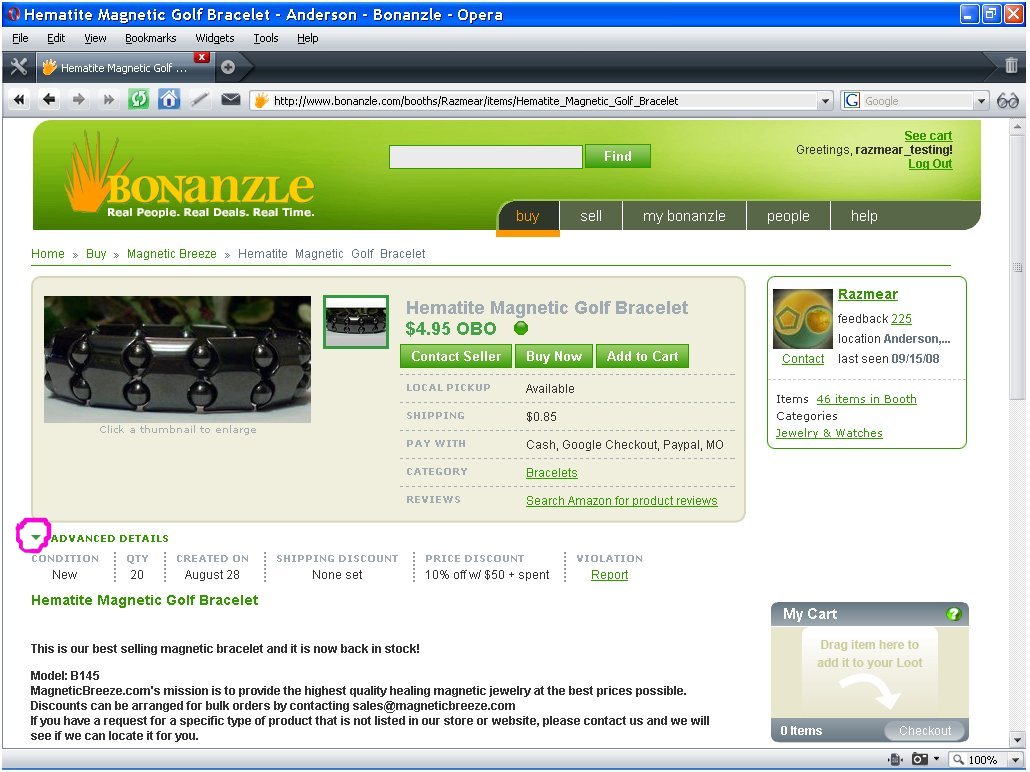
For this example we will assume that you want two of these bracelets, if you wanted to buy additional items, add them all to your cart before hitting "Checkout".
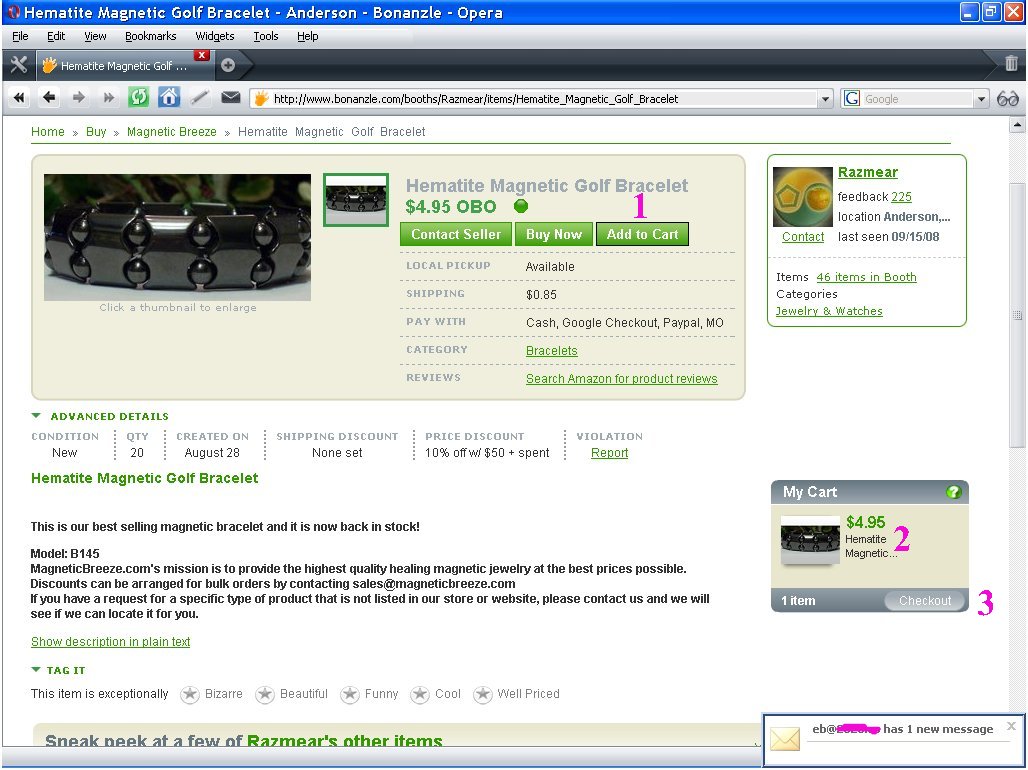
Adding items to the cart is fairly straightforward. Simply click the Add To Cart Button (1), Verify that the item shows in your cart (2), then hit Checkout (3) once you have all the items you wish. You will select quantity of each item on the next screen.
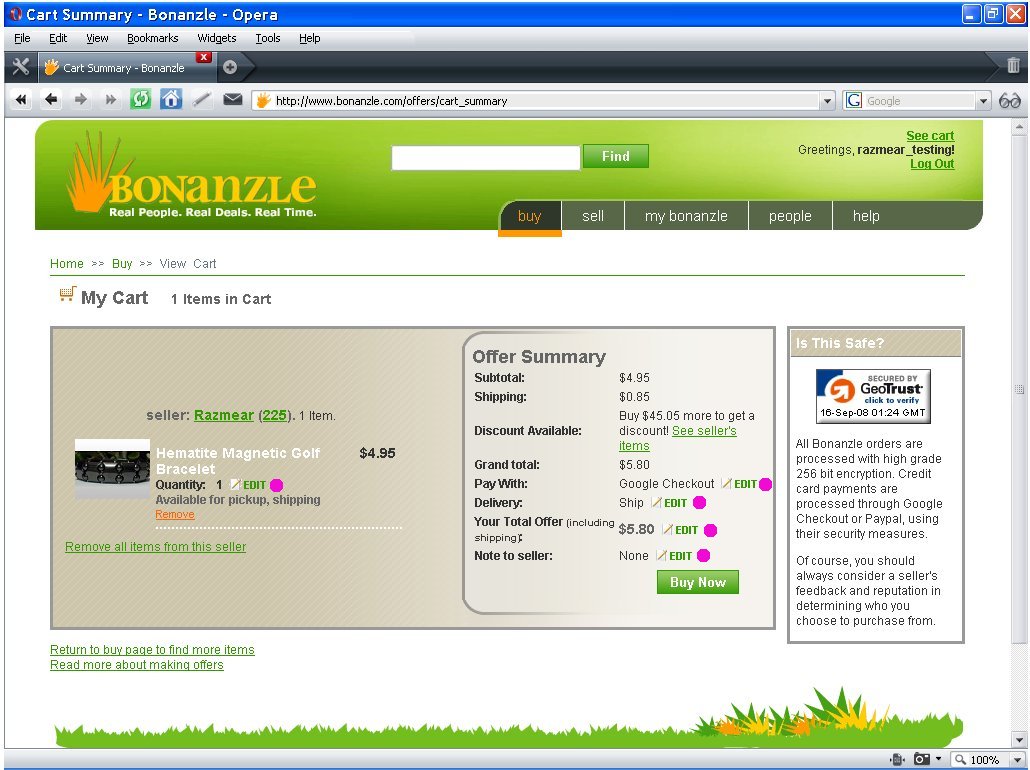
The Checkout Screen is where you enter your payment options, quantity and any notes to the seller.
Make sure everything is correct on this page before hitting the Buy Now button as you can not go back and make any changes once Buy Now is hit.
Notice the Edit buttons, these are where you make all the changes and are frequently overlooked by new buyers.
Hitting "Edit" next to "Pay With" displays a dropdown where you can choose your payment method. Be sure to hit the Check after selecting your payment type.
You can then hit the edit button next to Quantity to select how many of this item you want.
If you have selected multiple items, you can repeat as needed.
Also, if you want to send a note to the seller, for example to let him know what ring size you want, hit the Edit button next to Note. Again be sure to hit the CheckMark after each edit, otherwise your unsaved fields may go back to their original settings.
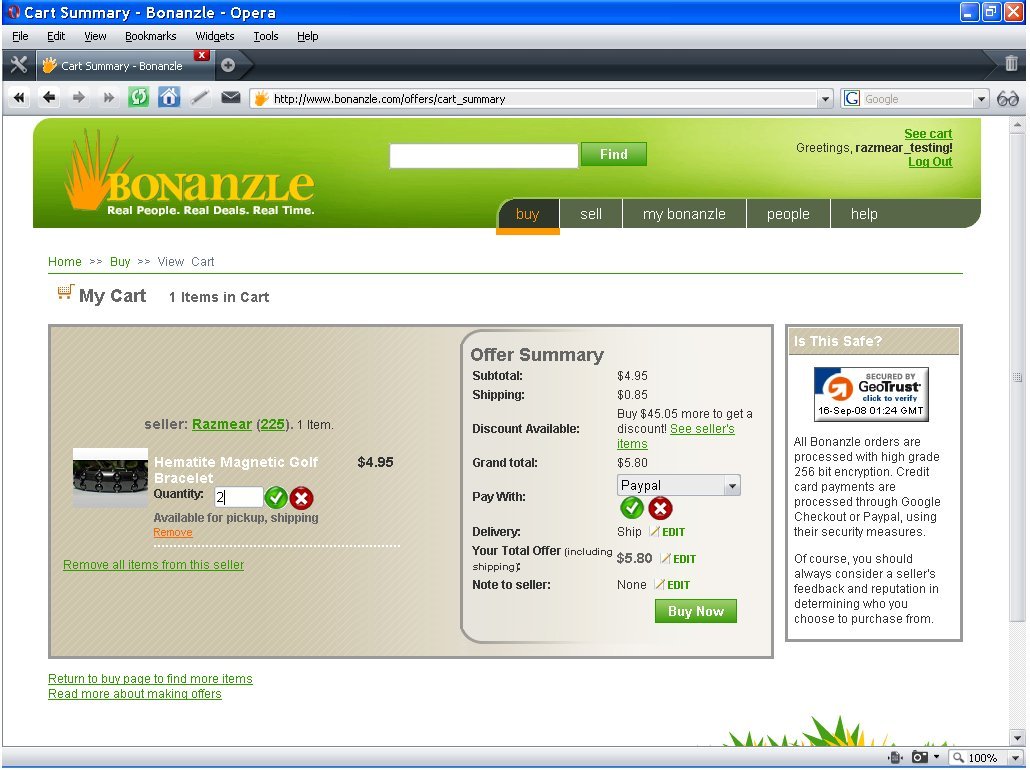
Before hitting the "Buy Now" Button, make sure everything is correct. Once you hit "Buy Now" there is no going back so be sure to double check everything.
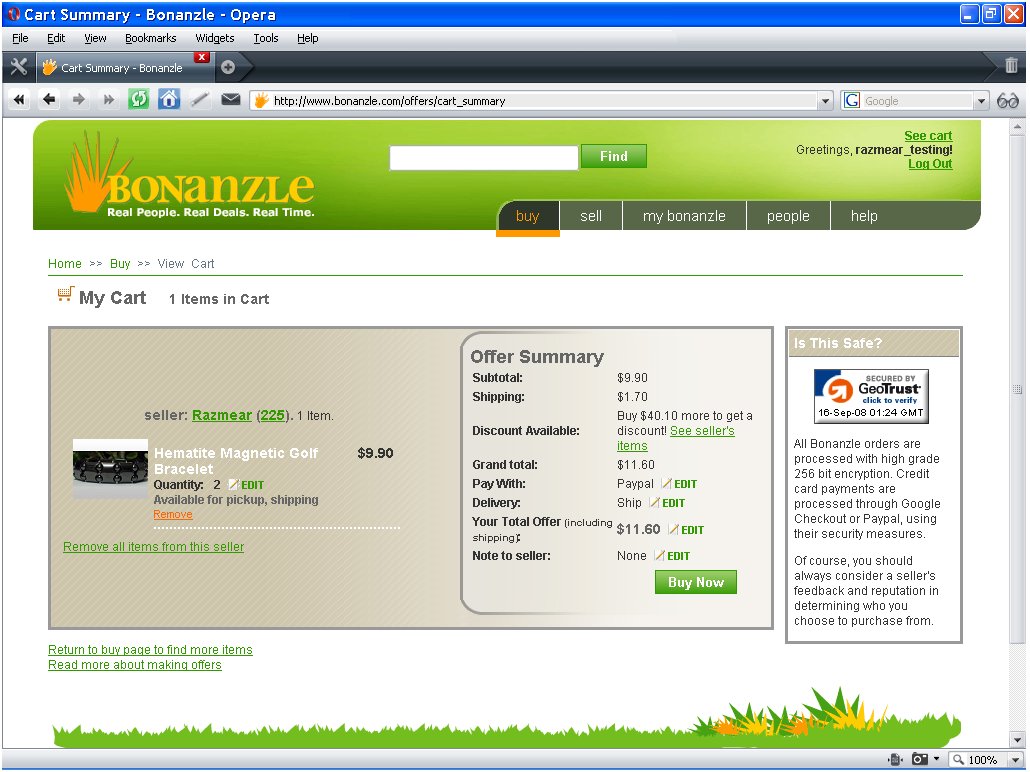
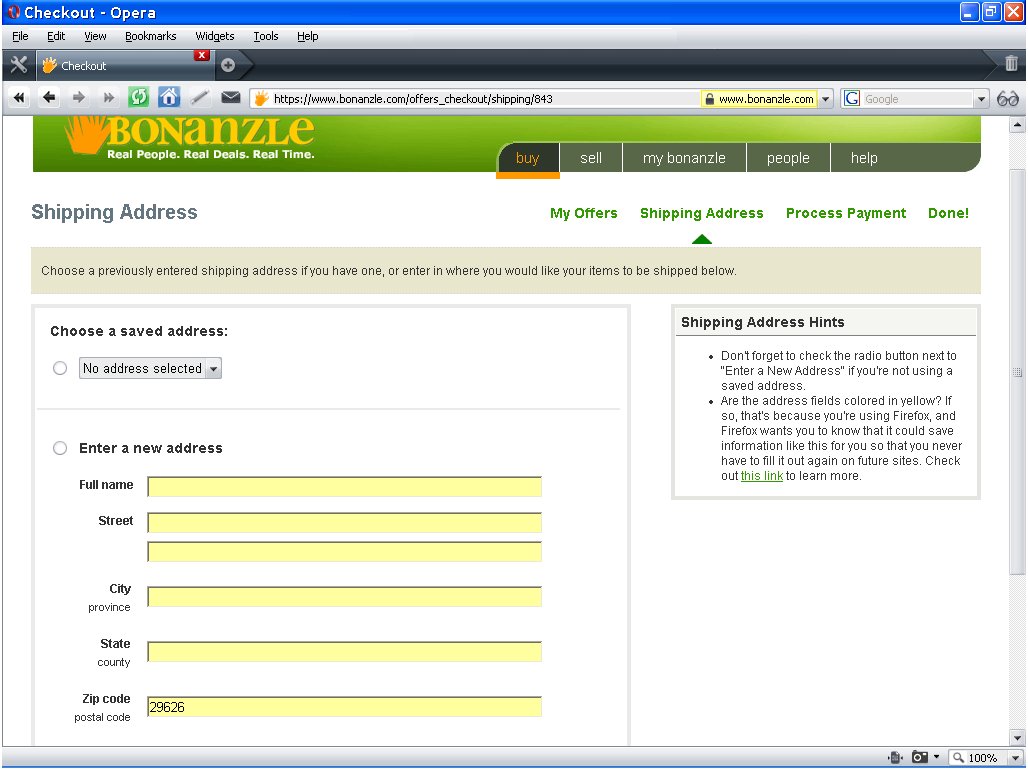
Once you have made sure everything is correct, hit the Buy Now button. You are now brought to your shipping address screen. If this is your first time buying from Bonanzle, enter your shipping address, if you have bought before you should be able to select your address from the drop down menu.
After you submit your shipping address you are given this screen and just hit the Pay with PayPal button to be directed to the PayPal site to complete the transaction.
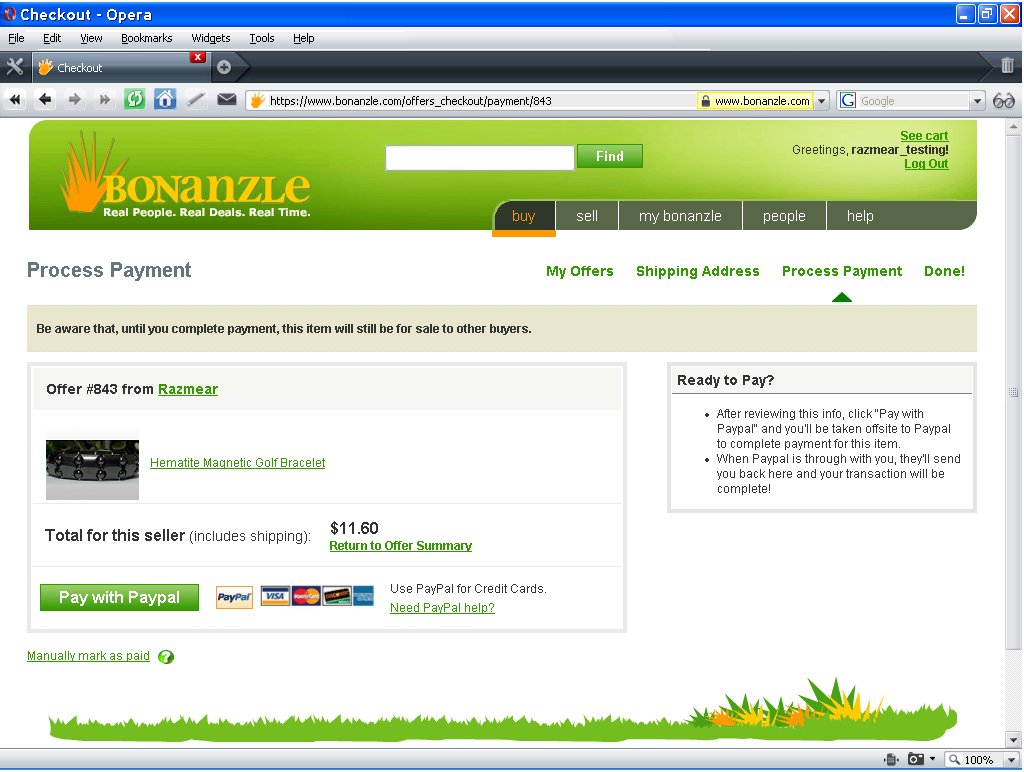
TaaDaa, you have just completed a purchase of multiple items using PayPal on Bonanzle, if you can get this far the rest of the process is simple.